Pages

Monday, November 25, 2013

Using PollEverywhere.com for Formative Assessment

I enjoy opening a PD session with a quick poll that I made at PollEverywhere.com. I often use polls as an anticipatory guide to let me gauge where my audience is before we start, or to get them excited and thinking about the upcoming lesson. The quick data that I can collect with an interactive poll helps me adjust my teaching to fit my audience's needs.

For example, if I'm holding a training session on Google Docs, I may have a poll up as people are arriving to ask them their comfort level with Google Docs at that moment, before the training. I can look at the results quickly before I start and tune my training accordingly based on the data; if most people have zero experience with Google Docs, I would teach differently than I would if I had a large group of people with experience. And if I have some that identify as intermediate or expert, I have some more challenging "take it to the next level" activities in my back pocket for them. Though this data is anonymous and depicts the group as a whole, it still helps me differentiate and support the full spectrum of needs thanks to a quick poll with instant, live results I can use right away.

PollEverywhere is a great formative assessment tool.You can sign up for a free account at PollEverywhere.com. There is the option to upgrade to a paid, premium account (which gives you the ability to enable student registration and grading), but I'm happy with the capabilities of the free account for my needs. Remember - I am just looking for quick, instant feedback to help drive my next lesson or gauge my audience on the fly.

There are two types of questions that you can create: multiple choice or open-ended.

Multiple Choice Poll Questions
When creating a multiple choice question in PollEverywhere, you can give options as text or use images to represent poll choices instead. I love using images as poll options for the primary grades! Multiple choice questions give you the ability to find out if students know or remember something you've previously shared. You can start the day with a multiple choice poll to see if students remember the take-away from the previous day's lesson. You could also ask students a question to gauge their understanding before beginning a new lesson to see how many may already know the answer. I also like using multiple choice poll questions as a "digital fist to five" as I mentioned previously, where students can tell me on a scale what their comfort level or understanding is before or after a lesson.

I also like asking a question at the start of a lesson, and then asking the same question (in a separate poll) at the end of a lesson, to see how responses may have changed after gaining new knowledge during the lesson, or to show student growth as a result of the lesson. As a real life example, students in a 4th grade classroom were asked at the start of a lesson whether or not they had free speech as a student. Their options were Yes or No. We displayed the results to show them what everyone thought before the lesson. Then we did a variety of close reading activities and had curated some interesting age-appropriate articles that students read and jigsawed collaboratively, and at the end of the lesson, we posed the same question - do you have free speech as a student? Based on the resources they'd read to learn more about what free speech is and real life examples that they could relate to, they voted again, Yes or No. Because we did this in two separate polls using the same question, we were able to analyze the before and after results. Imagine how powerful this could be! It's one thing to ask kids to raise their hand or do a thumbs-up, thumbs-down, but when you record results in a poll, you can take the responses to the next level and let the students analyze the visual results, too.

Analyzing results: Before (left) and After (right)

Open-Ended Poll Questions
Open-ended polls let you ask an open-ended question that could require a phrase or varied response as opposed to a set multiple choice answer. For example I could ask, "What is one thing you already know about volcanoes?" and students could share their varying responses similar to how you might use a traditional KWL chart. (Of course I could then follow up with an open-ended poll question to ask what they want to know, and later on to have students tell me at least one thing they learned, too!)

A real life example of using an open-ended poll question involves asking students to use the first word that comes to mind to describe a character in a book you've just read, or one you're currently reading. If I asked 2nd graders to describe Amelia Bedelia as an open-ended poll and chose the output method to be word cloud, then their results would appear on screen in a word cloud, meaning words that are used by lots of students will be larger so you can see the words that were used the most often to describe the character. To make this more meaningful at higher levels, if the character in a book goes through some significant character development during the story, you may want to pause and do this activity in the beginning, and then again at the end, to see how the word clouds for the characters have changed.


Supporting BYOD and Technology Integration 
PollEverywhere.com is a web-based tool that can be used to support BYOD (Bring Your Own Device) models or 1:1. You're not limited to just texting in a response to a poll, though that is certainly an option I've used with adults before, but responders can use the web response form (located at http://pollev.com) in the browser of any device - laptop, smartphone, tablet, desktop computer, etc. - to answer poll questions. In the free speech example above, students in the classroom had a combination of laptops they borrowed from the school and their own devices that they brought in. I LOVE browser based tools that support technology integration regardless of tech model. If you have a limited number of devices to use, you can always have students group up and collaborate on the question, coming to a consensus and then voting as a group. You could also use the device as a "station" - by refreshing the web response page at pollev.com after submitting your response, you're free to submit another response. So one student could respond, hit refresh, and another student could then respond as well.

The possibilities seem endless, and it's such a quick way to gather informal data that you can turn around and act upon immediately. Head on over to PollEverywhere.com and make an account today!

Thursday, September 12, 2013

Explain Everything!

If you enjoyed my last post about EduCreations, a great free whiteboard app for iOS that lets you record whiteboard lessons that you can share with students, then you'll really love Explain Everything. Especially if you flip your classroom or are experimenting with the idea of flipping some lessons.

Explain Everything 2.0 from MorrisCooke on Vimeo.

Like EduCreations, Explain Everything is a whiteboard app. Use it to record yourself teaching a whiteboard lesson. Draw, write, annotate, and narrate your way through tough concepts and share your recorded lesson with students. These recordings are great for students who missed a day of class, who need remediation or a memory refresher before a big test to reinforce big class concepts.

I explained all of this as part of my EduCreations post, though. So how is Explain Everything different and why am I spending time with it? Explain Everything is the next level of whiteboard lesson creation. Don't get me wrong - I love EduCreations. It's simple, free, and sometimes that's all you need. However, I found myself wishing I could embed video clips, pull websites into my whiteboard lessons, or go back and edit parts of my previous recording and this wasn't possible... until I discovered Explain Everything.

With Explain Everything, your basic functionality is there, of course - different pen colors for annotating, the ability to record yourself as you work through as many slides as you need to teach a concept, inputting text from your device's keyboard, pulling in images, etc. But Explain Everything lets me pull images, VIDEOS and FILES from Dropbox, Google Drive (which is great for our teachers, who all have Google Apps for Edu) Evernote, WebDAV, iTunes, box, or your camera roll. You can even pull in a webpage - type in the web address and the site appears, so you can record yourself going through actions on a website, or even annotate on the website. Super slick!

A few other little added features to Explain Everything that are nice to have when you're recording a whiteboard lesson include the insert shapes feature. There are only a couple of shapes - an arrow, a star, a line, a circle, and a square - but having those to draw attention to key pieces of your lesson are handy. Speaking of drawing attention to something, I also love the various cursor types available. When recording a whiteboard lesson, your gestures aren't always obvious, so having a laser pointer cursor or even the recognizable hand or arrow icon used on most computer operating systems to help you point something out is useful.

One really great feature of Explain Everything is the ability to go back and edit your recorded lesson's timeline. It's simplistic, but so helpful. Say you just messed up part of your recording. Pause the recording, press the Timeline Scrubber to go into playback mode, and go back to a point in your recording before your mistake. Then just press the Record button and you can record over and replace the existing recording piece where you messed up. This was something I really wanted from EduCreations, so I'm glad to see it in Explain Everything.

Once your whiteboard lesson, with all of its added bells and whistles, is finished, it's time to share with students. Just like you have a wide variety of choices when pulling in media to your lesson, you can also share your finished lesson in several ways. You can save it as an image, or as a video file for playback by students later. Save it to your camera roll, upload the movie to YouTube, Dropbox, Evernote, Vimeo, or Google Drive. Our teachers have access to a YouTube account through our Apps for Education Google accounts, which includes Google Drive. If uploaded to YouTube or Google Drive, teachers then have access to a URL to their video they can share with students, or they can Share in Google Drive with just the specific people that need to see the video lesson.

A few technical notes - Explain Everything isn't free, but its $2.99 price tag isn't bad, either. Definitely worth it for the added features it has over EduCreations if you need or like the extra bells and whistles that Explain Everything provides. Both EduCreations and Explain Everything are currently iOS only, HOWEVER, much to my excitement, Explain Everything is also available for Android, too. This will make my BYOD teachers that have Android devices very happy!

The possibilities seem almost endless with Explain Everything, and I definitely think it's a fabulous tool. Check it out!

Tuesday, September 10, 2013

Flipping Your Classroom with EduCreations

Screenshot from the web version of the tool.
Don't mind my poor handwriting with a mouse!
A lot of our teachers have recently begun experimenting with a flipped classroom approach. While the basics of flipping at its simplest level involves lesson content being watched by students outside of the classroom (i.e. online) while follow up & class discussion about the lesson then happens in person, teachers eager to get started with such a model aren't always sure HOW to get going. What tools can help a teacher get their lessons online? Where do you post them?

There's no one right way to flip, and flipping can look different from classroom to classroom. Some teachers post video lessons they curate from other sources, while some record their own. (Check out Kathy Schrock's awesome guide and resources for screencasting!) There are 100% flipped classrooms where EVERY LESSON is online, but most teachers I work with who are flipping are just doing so some of the time, for very specific lessons or student needs. For example, one teacher I know will do quick recap videos of big science topics (i.e. the water cycle) and make it available for students who missed class or who want to use the video to help them study for the upcoming test.

Whether you plan to truly flip lessons or just make content available to students online for remediation, one tool that I really enjoy is EduCreations. EduCreations is a whiteboard web tool and app that allows you to record whiteboard lessons and share with students. It's also 100% free!

Create a lesson via the web or create on the iOS app.
Lessons created on the app will appear on the web dashboard, too.
Teachers first register for an EduCreations account. To keep it simple, they can leave it at that, and just start recording some whiteboard lessons. To take it to the next level, they can set up virtual classroom spaces on the website and invite students with an access code to be members of their classroom.

Share options on your finished lessons.
When a teacher creates a whiteboard lesson (either via the web tool when they're logged in or the iOS app on their device) they have a few ways to share it with kids. The most simple way is to just grab the URL for the lesson and link to it on their own classroom website, BUT if the teacher has set up a class space for students on EduCreations, they can instantly share the lesson with the class that way, too. There's even embed options if your class website or blog supports embedding HTML code. It's pretty simple!

Here is a quick demo "lesson" I made of EduCreations' tools and features that I have embedded into my blog:


On my "wish list" for EduCreations is a way to go back in and edit the whiteboard video or narration if you make mistakes. A lot of times you're probably just recording small snippets of concepts, but if you're recording a long lesson and mess up, you pretty much have to start over. Also, unless you're REALLY good with your handwriting using a mouse, or you have a digital pen/tablet set up on your computer, you'll find creating whiteboard lessons to be a bit easier on the app vs. the web tool. I also noticed that the web tool doesn't seem to have a keyboard input option for text like the app does. You can only write with the mouse. (The app lets you use your iOS device's keyboard to type in text on the screen.) Overall, though, things I can totally let slip for the luxury of being able to narrate and illustrate your way through a lesson and so easily make available for students... plus you can't beat the (FREE) price tag, right?

If teachers are just getting started with the idea of flipping their classroom or just want to make their own video lessons for students to help reinforce things they learn in class, EduCreations is a great tool to try and is very user-friendly. The URL of your lesson can be linked on your homework page or even emailed out to parents to help keep them in the loop, too.  I definitely recommend giving it a try. You'll be hooked!


Friday, August 2, 2013

Reflection on a Summer of eLearning

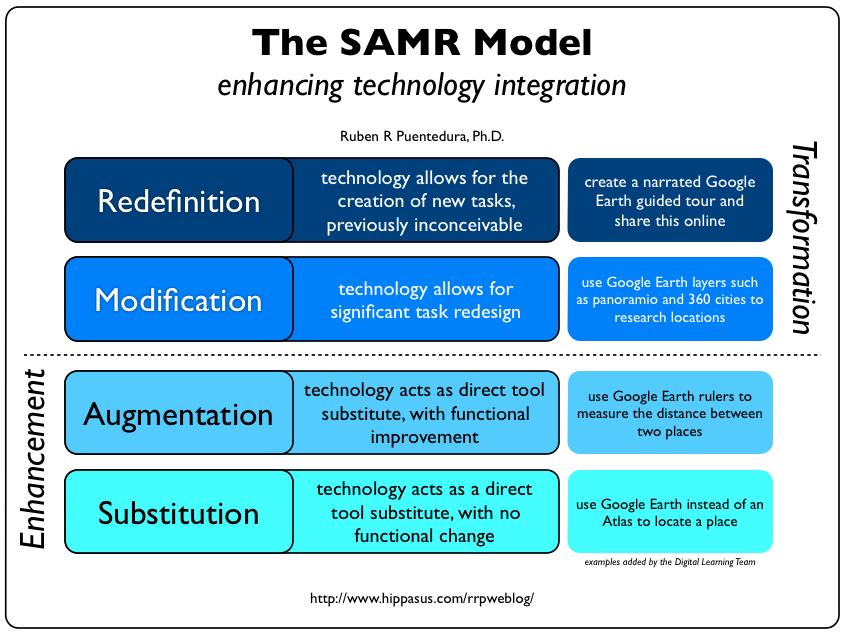
The SAMR Model I created as part of my RUP
Wow, I feel like I just wrote the post that I was starting an online eLearning summer course, and here I am writing up a reflection on how it went. The summer went by way too fast!

My biggest takeaway from the eLearning coursework this summer is the SAMR Model. Having a framework to see where I am and where I need to go when it comes to technology integration was really eye-opening. I think it's just what I need to use with my colleagues to help THEM see what meaningful technology integration looks like, too. I plan to weave this in to the things I do and the professional development I provide this upcoming school year.

Because I want to introduce the SAMR Model to my colleagues this year, my Really Useful Project was a screencast I made of myself going through an introduction of the SAMR Model, and at each level, illustrating how Google Docs relates to the framework. We use Google Docs district-wide, and most staff are at least familiar with it, and many are using it or planning on using it. I thought using Google Docs to show what each level of the SAMR Model looks like would help them better visualize how to move up towards more transformational learning opportunities for students.


[Want to watch this on YouTube? Click the link here!] What's neat about the SAMR Model to me is that I realized other aspects from the course this summer, like discussions about student engagement and motivation, really goes hand-in-hand with this framework. While it may seem like a lot of work to transform the way you integrate technology and reach the higher levels of the SAMR Model, once there you're actually doing yourself a favor and making your life easier, because when students are working that that transformational level, they're engaged AND motivated, and the teacher is no longer holding their hands every step of the way in their learning. Students are driving their own learning and are getting a better idea of what the real world is like.

I appreciated the tools section; and though I feel like I curate a lot of resources and had heard of a lot of the tools presented already, I still picked up a few new ones that I plan to look into further. Hearing how others use resources, even ones I had heard about before, was helpful. I found myself pulling from discussions and things I had learned in this summer course (especially about motivation and engagement) when I presented a BYOD workshop just this week for our staff who came in for some summer professional development. I feel like having this course under my belt helped to make me feel more confident about helping others see how important it is to embrace technology in the classroom.

I'm looking forward to applying what I've learned (and keeping some things in the back of my mind as I work with others) this upcoming school year! It's going to be a great year.

Wednesday, July 24, 2013

Social Media in the Classroom

I think social media in the classroom is a great way to keep kids connected in ways they are (most likely) already using. Facebook and Twitter can be useful tools when used in meaningful ways. Facebook allows teachers and students to stay connected in groups to share information, assignments, and resources. Its forum-like abilities means that students can engage in meaningful conversation and respond to each other. Twitter can help students get and share small bites of information and follow hashtags that help network them with others discussing the same topic all over the world, including following current news and world events in real time, as they unfold. 

Most students are already using Facebook and Twitter to stay up-to-date on everything else going on in their lives; having access to their classmates and teacher in an environment they're already comfortable using to continue the classroom conversation, get assignment reminders and ask questions 24/7 of other classroom members helps kids feel connected and means they are more likely to be involved and engaged in their learning. Those online conversations and interactions helps students to continue thinking about class topics even when they're not in class, and encourages them to participate anytime, anywhere. 

While there are a lot of pros to the idea of using social media in education, (with students 13 or older, the minimum age to create accounts on these networks) some groundwork needs to be laid in advance and expectations covered to address the "cons." Students need to be reminded that even when at home, they still must be respectful in these online spaces with their peers, as it is an extension of the classroom environment. (This can go hand-in-hand with digital citizenship lessons!) Teachers should create a separate, professional account to use in these situations as well, instead of friending students on their personal accounts. While some may think that students will use these networks inappropriately, or that allowing them to use Facebook and Twitter in class means they will spend class time using these networks for personal reasons, it's all about setting those expectations of access and use with students ahead of time, and outlining when and what is appropriate. When you integrate the use of these social networks in meaningful ways as part of their learning, you'll find that students WANT to engage in the assignments, because they're excited to be able to use the social networks they're already comfortable using in an educational way. Most students are already learning and exploring about world events and news from others through their social networks, so it'll be a natural extension that can encourage this desire to always keep exploring and learning. 

When used appropriately, social networks in the classroom can provide rich and meaningful experiences that students are comfortable with and can relate to, encouraging classroom participation and conversation even when they're not in the classroom.

Friday, July 19, 2013

Future Curation Tool to Explore: My Big Campus

Though I enjoy using Pinterest to curate resources, tools, professional development, and edtech articles, I have been fascinated by and interested in checking out My Big Campus for awhile now. I attended a workshop on it last fall, and am even more convinced after looking into further how bundles would be a great way for teachers to curate digital curriculum and create "digital textbooks" from a wide variety of online sources. Even better is that they can share those bundles with each other, helping to spread good sources and curriculum bundles not only across the district, but also with other teachers in the world who may be interested in what they have curated. I like that there are bundles already created, which are good starting points for a new teacher to My Big Campus. They can use those bundles as-is, or remix them and add/remove other resources to create their own bundles unique to their classroom needs. Bundles can easily be presented to students as resources to help facilitate their learning. I know that several teachers are using Edmodo at the high school, and I'm not sure what it would take to do a district-wide My Big Campus setup, but I love the idea of curating and bundling resources to share in a variety of ways.

Wednesday, July 10, 2013

The SAMR Model to Enhance Technology Integration

My summer of eLearning is moving right along, and this week we've been talking about authentic assessment and feedback. We know how important quality feedback is for students in order to push them to their furthest potential in the classroom, but this is true in an online environment, too. Walking hand-in-hand with this is authentic assessment. Online assessment must include more demonstrations of higher-level thinking to be truly authentic and meaningful. Online educators don't have the luxury of being in-person with students when they complete assessments, so multiple-choice assessments you may still see in the physical classroom won't work; are you assessing them on what they've learned, or if they've learned how to Google their answers? (Side note: authentic assessment and higher-level thinking should also be the goal in the physical classroom, too!)

I think this brings me to the topics that have hit the closest to home for me this summer. I really think the introduction of the SAMR model is going to be most beneficial for me to start with. We have a lot of teachers who are trying technology in the classroom, and/or who are eager to get started this next year now that we've introduced BYOD, but I think too many are under the impression that this simply means using technology for technology's sake or substituting paper worksheets for worksheets that can be filled out on a handheld device. We need to move away from the substitution level and progress up the SAMR model ladder to the redefinition level, and I think the SAMR model has given me the framework I can work from to help teachers not only see this progressive ladder, but also start to climb it.

Have you seen this pedagogy wheel by Allan Carrington? It's been updated recently to include the SAMR model around the outer band of the wheel, which is so awesome and helpful! Read more about the update that helps you integrate technology at Edudemic here.


I think as teachers begin to climb the SAMR model ladder towards more transformational integration of technology, they'll find it's a natural progression into more authentic forms of assessment AND make technology integration in their classroom more engaging for students. Right now, I think teachers feel like just having devices in the classroom and using them to do substitution level tasks is motivation enough and is engaging for students. And at the start, sure! Kids will be excited just because they're allowed to use their devices. But it's not enough. The use of technology in this way just isn't meaningful, and "using technology" in classrooms like that will get stale quickly, which will lead to frustration for both teachers and students. It's going to be hard to convince teachers to let go and let students have freedom of choice... but if they use the SAMR model as a framework to build on, they'll get there. Authentic assessment and true student engagement will naturally follow suit.

I feel like I may be rambling a bit, but I think what I've just realized is that the SAMR model is going to be the backbone of how I approach working with teachers this school year. It will help teachers who have been reluctant to take their first steps have a solid starting point, and those who are ready to transition further up the ladder will see how to take their integration to the next level. The hard parts, that is, effective (and ongoing!) student engagement and authentic assessment, will naturally fall in place as the teacher works their way up to using technology in a meaningful, redefined and transformational way, because at the redefinition level students have choice, which is motivating and engaging, and their choices will make way for teachers to authentically assess them.

I'm looking forward to putting some of the things I've learned this summer into practice with staff in the fall. I can't wait to help teachers learn how to use technology in a meaningful way that will help produce students who are equipped with the skills they'll need to tackle the 21st century workplace.